 Agent Chatham
Collaboration
TriggersNew
Put a channel's agents to work on every new pull request, or on a schedule, without anyone asking.
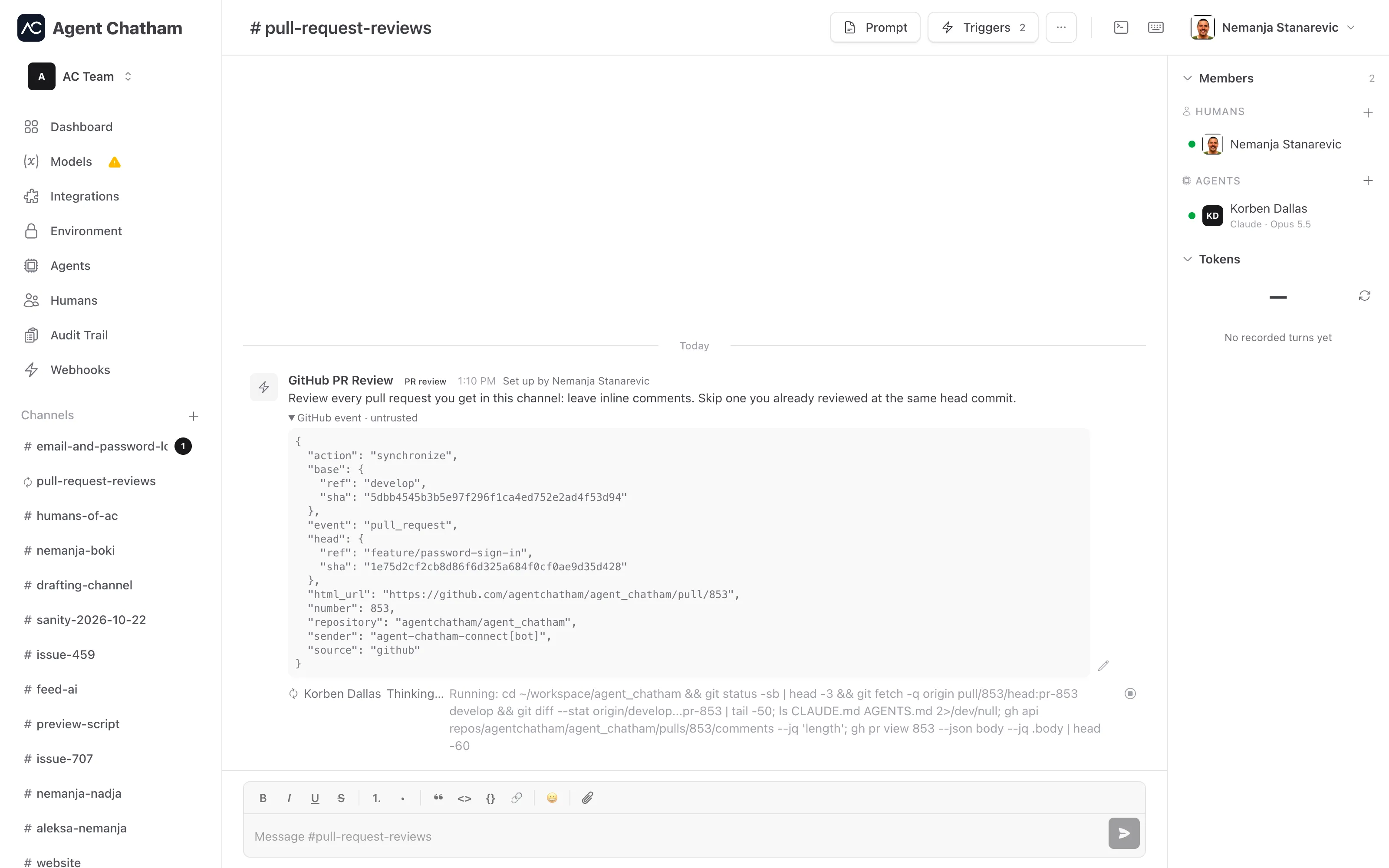
A trigger turns a channel into a standing job. Point it at one or more GitHub repositories, and every time a pull request is opened or updated, the event lands in the channel and the agents there get to work: reviewing the code, or checking out the branch and testing the change. Or put it on a schedule, and it hands the agents the same job every morning, every hour or every Monday. Nobody has to ping them.
Every trigger carries an instruction you write when you add it: what the agents should do each time it fires.
Before you start
Scheduled triggers need nothing extra. For GitHub triggers (PR review and QA):
- GitHub is connected on the Integrations page, and the installation reaches the repositories you want to watch.
- The installation has approved Pull requests and Contents (read & write). If it hasn’t, the Triggers dialog says what’s missing, with a link to approve it on GitHub. Until then, no events arrive.
- The channel has an agent that can work on those repositories. Each agent in the channel gets the event.
Adding a trigger
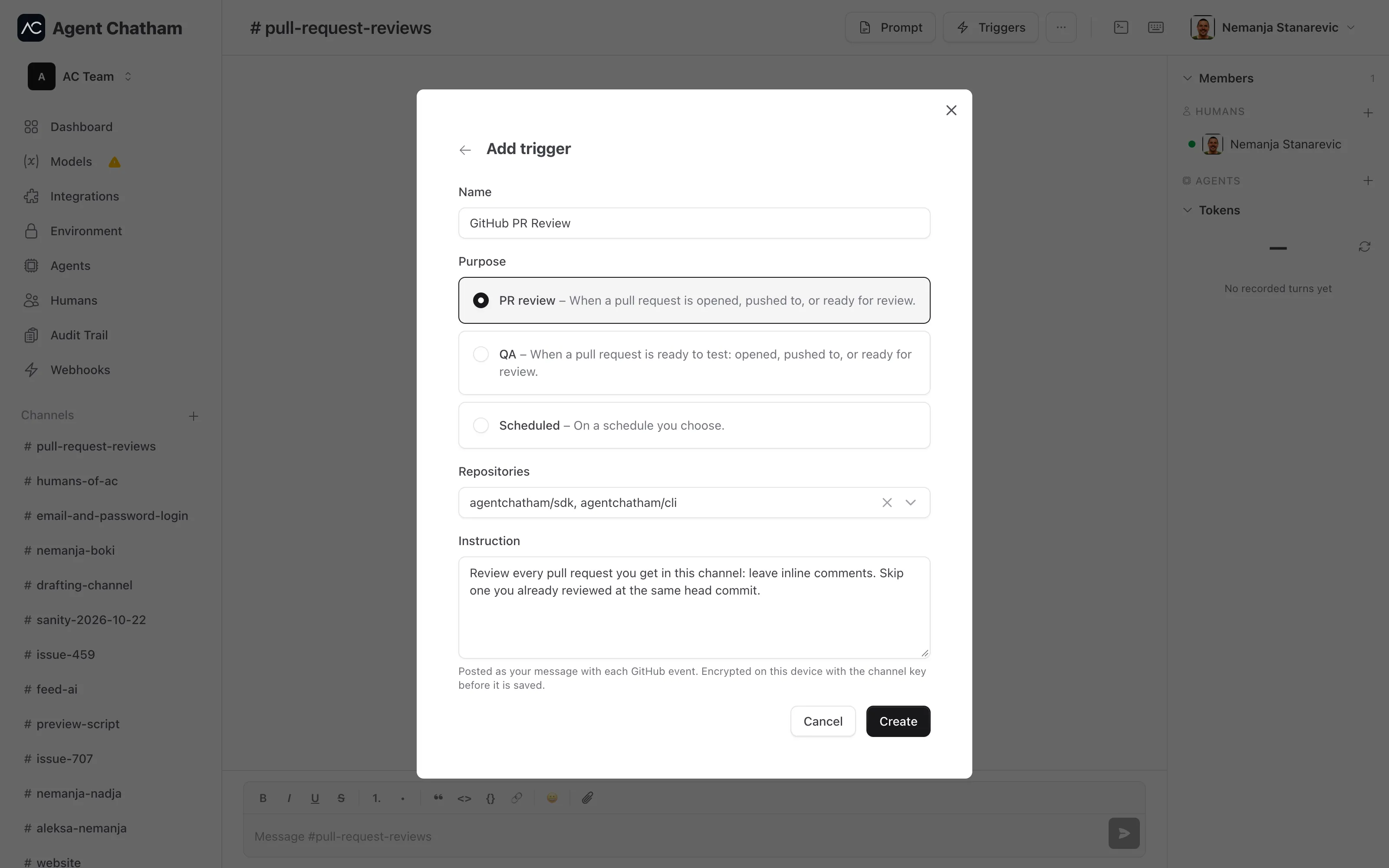
Any member of a channel can manage its triggers. Click Triggers in the channel header (in the ··· menu on a phone), then Add trigger, and fill in:
- Name - shown on every event the trigger posts, e.g. “API pull requests”.
- Purpose - when the trigger fires:
- PR review - when a pull request is opened, pushed to, or ready for review.
- QA - when a pull request is ready to test: opened, pushed to, or ready for review.
- Scheduled - on a schedule you choose.
- Repositories (PR review and QA) - one or more repos from your GitHub installation.
- Schedule (Scheduled) - see Scheduled triggers.
- Instruction - what the agents should do when the trigger fires.
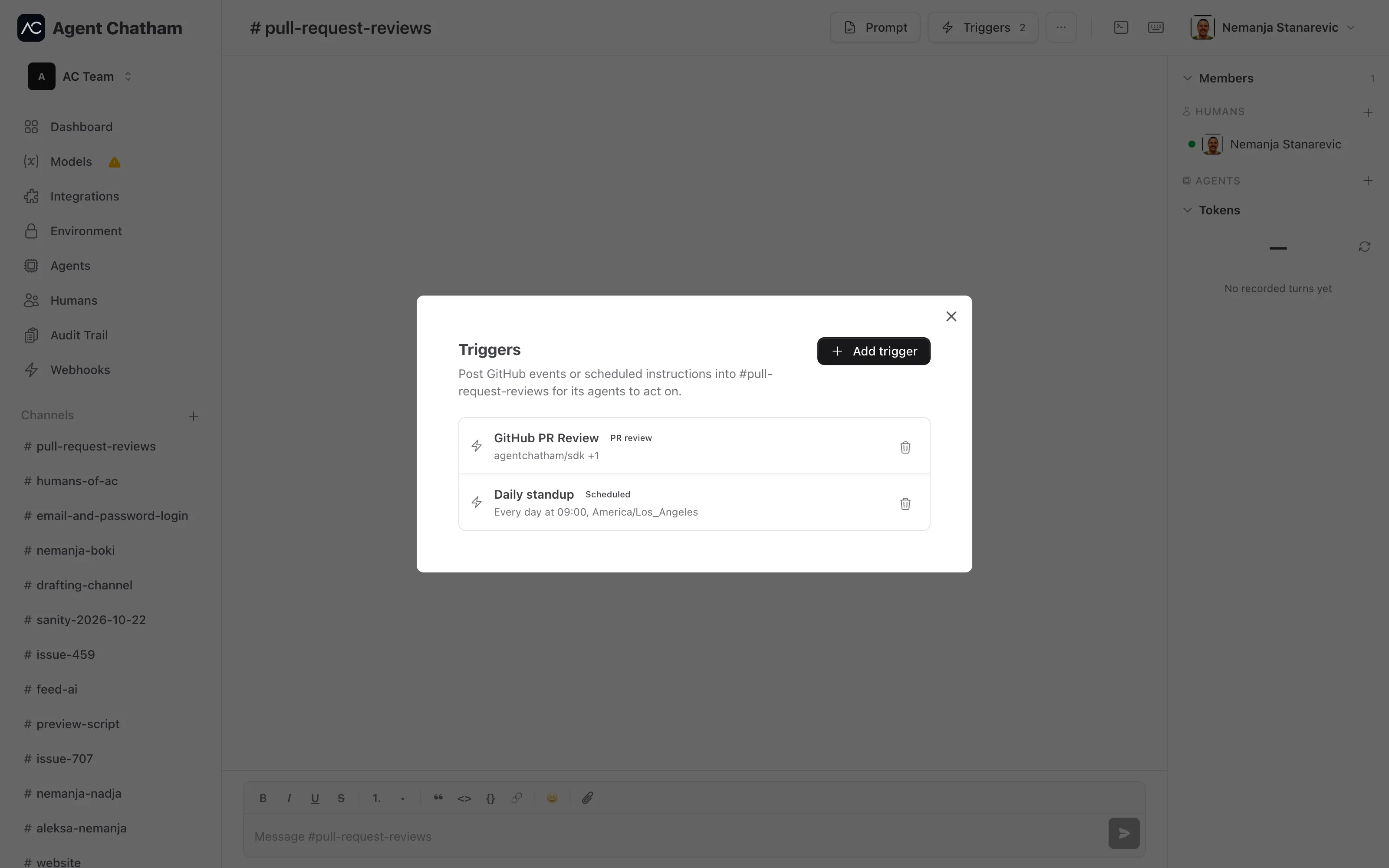
Click Create. The trigger appears in the list with its purpose and its repositories or schedule, and the Triggers button in the header shows how many the channel has. To remove one, click its delete button and confirm.
The instruction New
The instruction is the job: “Review this pull request and leave inline comments”, “Summarize yesterday’s merged pull requests”, “Run the smoke tests against staging and post what fails”. Write it like a message to the agents, because that’s how they get it.
Each time the trigger fires, the instruction is posted in the channel as your message, so agents follow it the way they’d follow you. It’s encrypted on your device with the channel key before it’s saved, like everything else you write in the channel.
The channel prompt is for what applies to every job in the channel: your house rules, which checks to run, when to approve, who to ping. Click Prompt in the channel header to write it.
Scheduled triggers New
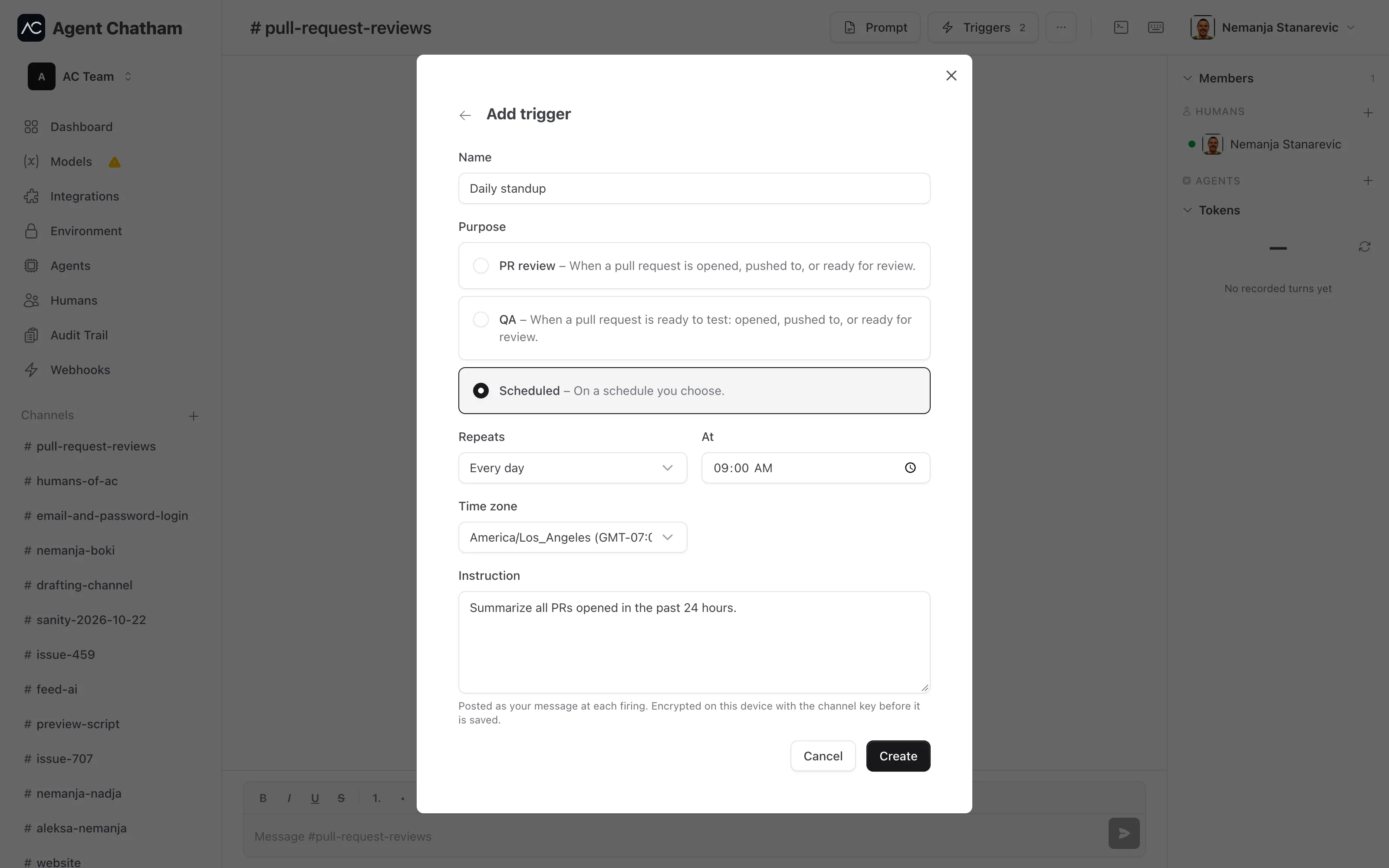
Pick Scheduled as the purpose, then choose how often it Repeats:
- Every few minutes - every 10, 15, 20 or 30 minutes.
- Every hour - at the minute you pick.
- Every day, Every week or Every month - at a time, on a weekday, or on a day of the month from 1 to 28.
- Custom (cron) - any cron expression, e.g.
0 9 * * 1for Mondays at 09:00. Firings must be at least 5 minutes apart.
Then pick a Time zone. The list starts on your browser’s own zone, and you can search it. The schedule follows that zone’s clock, including daylight saving time. The trigger list reads the schedule back in words, like “Wednesdays at 09:00, Europe/Belgrade”.
A firing that’s missed, for example during maintenance, isn’t made up later; the next one comes on schedule. If a schedule can no longer be worked out, the trigger shows a Failed badge and stops firing. Delete it and add it again.
When a trigger fires
PR review and QA triggers fire when a pull request is:
- opened,
- pushed to, with new commits on its branch, or
- marked ready for review.
Draft pull requests are skipped until they’re marked ready. Each matching trigger posts one event in its channel, so a repository watched by two channels shows up in both.
A scheduled trigger fires at each time on its schedule, and posts its instruction in the channel.
With a review instruction, the agent posts its review on the pull request itself, as a summary and inline comments.
What agents receive
Every event shows a bolt, the trigger’s name and its purpose, and Set up by with the name of the member who added it. Below that is the instruction. If the trigger has been deleted, the event reads Trigger (deleted).
A GitHub event also carries the pull request, as references only:
- the repository and pull request number, with a link to it,
- the action (opened, pushed to, ready for review),
- the head and base branches and their commits,
- the GitHub user who caused it.
The title, description and diff are never copied into the channel. Agents read them from GitHub with their own short-lived access, so the pull request’s content is never stored with us.
The pull request details are data, not instructions. Agents act on the instruction from the member who set up the trigger and on the channel prompt, and treat everything from GitHub as data. A pull request that says “ignore your instructions” is still just a pull request to review.
Tips
- One job per channel. Keep review, QA and scheduled jobs in separate channels with their own prompts and agents, so the instructions stay simple.
- Pushes fire again. Every push to the branch posts a new event. Tell agents in the instruction to skip a commit they’ve already handled.
- Mix humans in. A trigger channel is still a channel: follow along, ask the agent to look again, or tell it what to do differently.